Build a short channel favorites list in IPTV Smarters Pro
This guide is for anyone who opens IPTV Smarters Pro on a Windows PC and finds a channel list so long that scrolling through it feels like a chore. By the time you finish, you will have a compact favorites group containing only the channels you actually watch, sitting at the top of the app every time you open it.
The setup takes a few minutes. After that, the favorites list does the work for you.
Frequently asked questions
- Can I have more than one favorites list in IPTV Smarters Pro?
The app provides one favorites section by default. Some versions allow you to create named groups, which effectively acts as multiple lists. If that option is not visible in your version, one well-curated favorites list combined with category browsing covers most needs.
- Will my favorites list transfer if I reinstall the app?
Not automatically. Favorites are stored locally, so a fresh install starts with an empty list. It is worth keeping a note of the channels you added so you can rebuild the list quickly.
- Do I need a specific Windows version to run IPTV Smarters Pro?
The app runs on modern versions of Windows. Check the system requirements on the developer's download page before installing to confirm compatibility with your machine.
- What happens to my login details if I change devices?
The credentials in your welcome email remain the same. Enter the same user name, password, and server address on the new device and the full channel list appears as before.
Get the app running and signed in
IPTV Smarters Pro for Windows is installed like any desktop application: download it from the developer's official page, run the installer, and launch it. The first screen asks for a user name, a password, and a server address. All three arrive in the welcome email, usually within a few minutes of payment. Enter them once, confirm, and the app moves straight to the channel list on every later launch.
If the email has not arrived after a short wait, check your spam folder before anything else. The credentials are case-sensitive, so copy and paste them rather than typing by hand.
Once you are past the login screen, the full channel list loads over your home internet connection — no dish, no cable socket, nothing else required. At this point you are ready to start trimming it down.
What to check before moving on: channels load, picture plays, and you can see the full list in the left-hand panel.
How favorites work in Smarters Pro
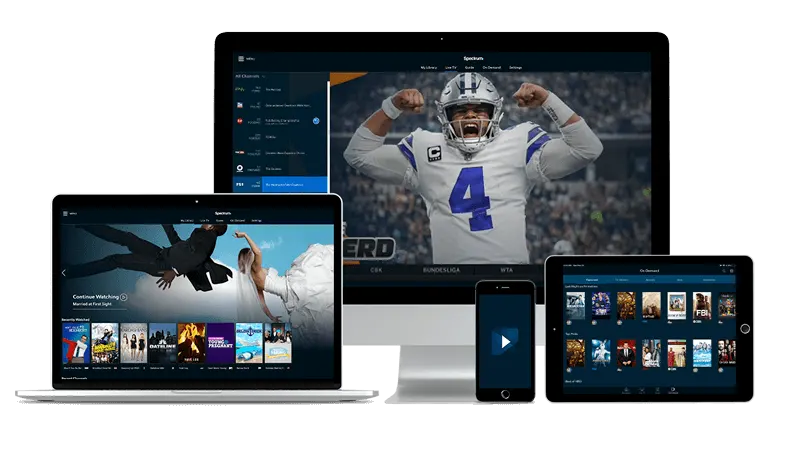
IPTV Smarters Pro keeps a dedicated favorites section that sits separately from the main channel list. Adding a channel to it does not remove the channel from anywhere else; it simply creates a shortcut. You can have one tightly edited favorites group and still reach every other channel when you need it.
The favorites section persists between sessions. Close the app, reopen it, and the list is exactly as you left it. That makes it worth spending a few minutes building it properly the first time.
For context on how quality labels next to channel names affect which version you should add to favorites, the article on reading channel quality labels clearly explains what each tag means without technical jargon.
What to check before moving on: you can see a favorites or 'My List' tab in the navigation.
Adding channels one at a time
The quickest method is to right-click any channel name in the list. A small context menu appears. Select 'Add to favorites' (the exact wording may vary slightly by version, but it is always the first or second option). The channel moves to the favorites section immediately.
Repeat this for every channel you want to keep close. A focused sports fan might add a handful of news and sports channels. A household with mixed tastes might add a kids channel, a news channel, and two or three entertainment channels. The point is a short list, not a complete one.
If you want to add a range of channels in one pass, browse by category first. Smarters Pro groups channels by genre in the left panel. Open a category, scan the names, and right-click each one you want. Working category by category is faster than scrolling the full list.
What to check before moving on: open the favorites tab and confirm the channels you added are listed there.
Keeping the list short and useful
A favorites list that grows without limit becomes the same problem as the full channel list. A good rule is to remove a channel whenever you notice you have not watched it in a while. Right-click any entry in the favorites tab and choose 'Remove from favorites' — the channel disappears from the shortlist but stays in the main list.
If you share the PC with someone who watches different things, the simplest approach is to agree on a small shared core (a main news channel, one kids channel) and let each person search the full list for anything outside that core. The search bar in Smarters Pro finds a channel by name in a moment, so the full list is never more than a few keystrokes away.
For households that also want to organize comedy viewing, the approach to building a comedy series shortlist with categories and search follows the same logic and is worth reading alongside this one.
What to check before moving on: the favorites tab contains only channels someone in the household watches regularly.
When the picture or login stops working
Two problems come up most often. The first is a channel that buffers or refuses to load. Before blaming the service, check whether other channels play cleanly. If they do, the specific channel may be under heavy load; try again after a moment. If nothing loads, the issue is almost always the internet connection: restart the router, wait for it to fully reconnect, and try again.
The second problem is the app asking for login details again after an update. The credentials have not changed; the app simply lost its saved state. Re-enter the same user name, password, and server address from the original welcome email.
Anyone still deciding whether this kind of service fits their viewing habits can find a plain-language comparison at a guide for American retirees looking at IPTV options, which covers what to expect before signing up.
For a broader look at what the service includes, the MAG Box IPTV home page lays it out.
What to check before moving on: the favorites tab loads without error and at least one channel plays.